How to contribute Accessibility fixes to an open source GitHub repository
Table of contents
- Introduction
- Summary
- Auditing the website with Lighthouse
- Finding a fix for an issue
- Finding the issue in source code
- Creating a fix for the issue
Introduction
This article describes a step by step process how to find and fix accessibility (a11y) issues in an open source github project by only using a Chrome browser (no local setup required). The skill is transferable to personal projects and company projects.
This post does not include any programming.
The post is aimed at:
- Web Developers;
- Quality Assurance (QA);
- People interested in learning accessibility.
This post assumes that you have a GitHub account and basic HTML knowledge.
Prerequisite setup required - a github account (register at GitHub).
Summary
Summarized steps for the busy:
- In the target website open developer tools (F12 shortcut usually or right click + inspect).
- In
Lighthousetab pressAnalyze page. - Pick one of the accessibility issues listed in the audit result page.
- Read the issue description and check attached issue fix link to find a solution.
- Focus the element by clicking on the failing element selector (e.g.
a.block.w-fit.py-2.pr-2) in the failing element description section. - Pick a an attribute (e.g.
href,class,idor any other that identifies the element) from the element that can be used to search for it in the source code (e.g. in the article example it is/homeformhrefattribute or alternatively the whole class stringblock w-fit py-2 pr-2from theclassattribute). - In the source code repository use GitHub search to find the specific element.
- Fix the accessibility issue by editing the file in the file page:
- May require creating a fork (if the project requires it) of the repository;
- May allow creating a pull request which skips forking.
Auditing the website with Lighthouse
Open website in Chrome https://dub.co/
Open developer menu F12
Navigate to Lighthouse in the toolbar
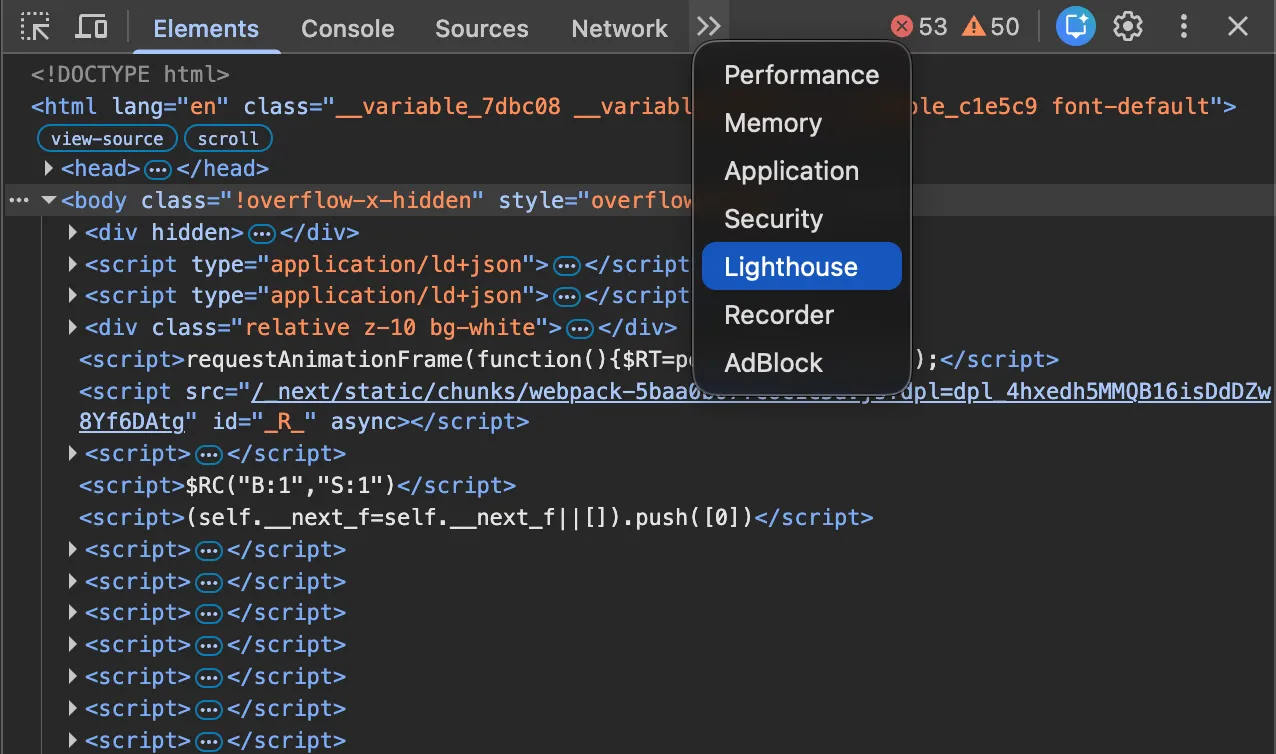
In the Lighthouse tab, choose Navigation (Default) mode, in categories check only Accessibility, for device check Desktop and click Analyze page state.
Note: when choosing Navigation (Default) the tool allows accessing the dom elements with a click unlike the other modes.
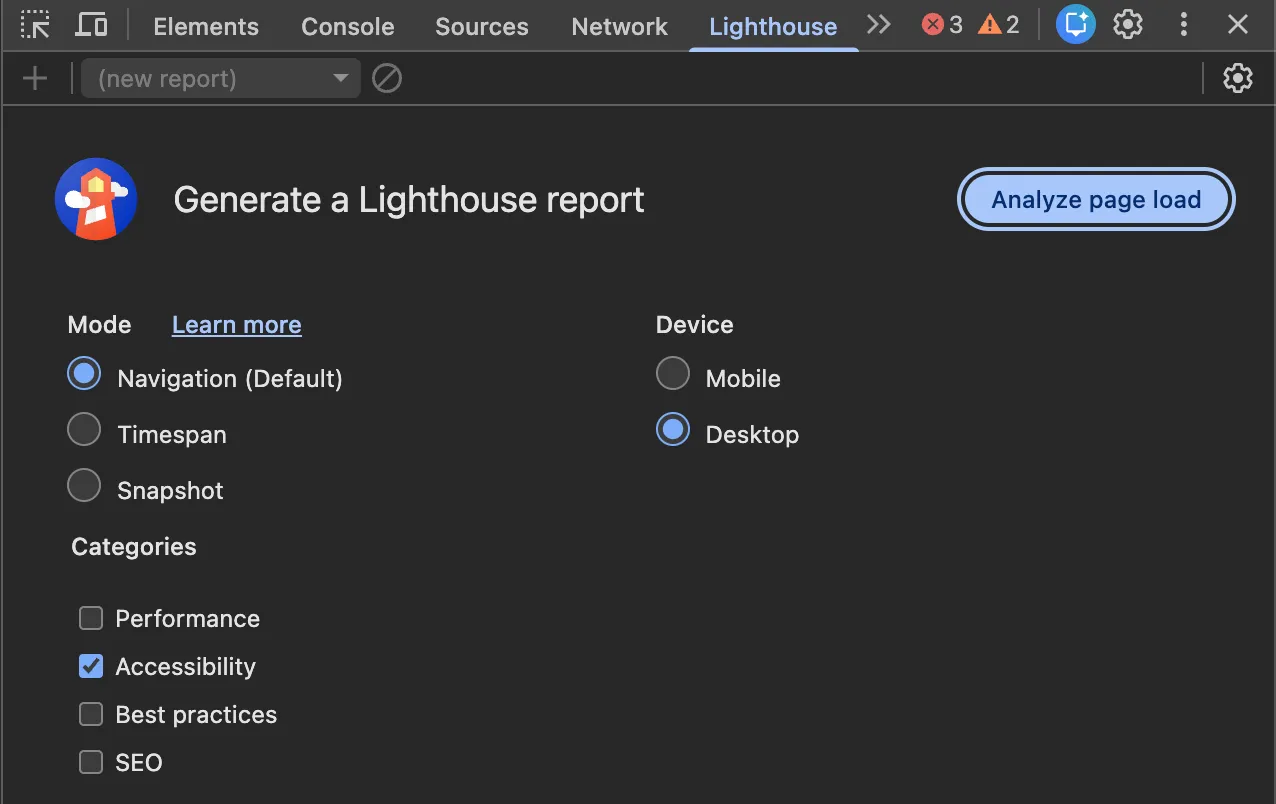
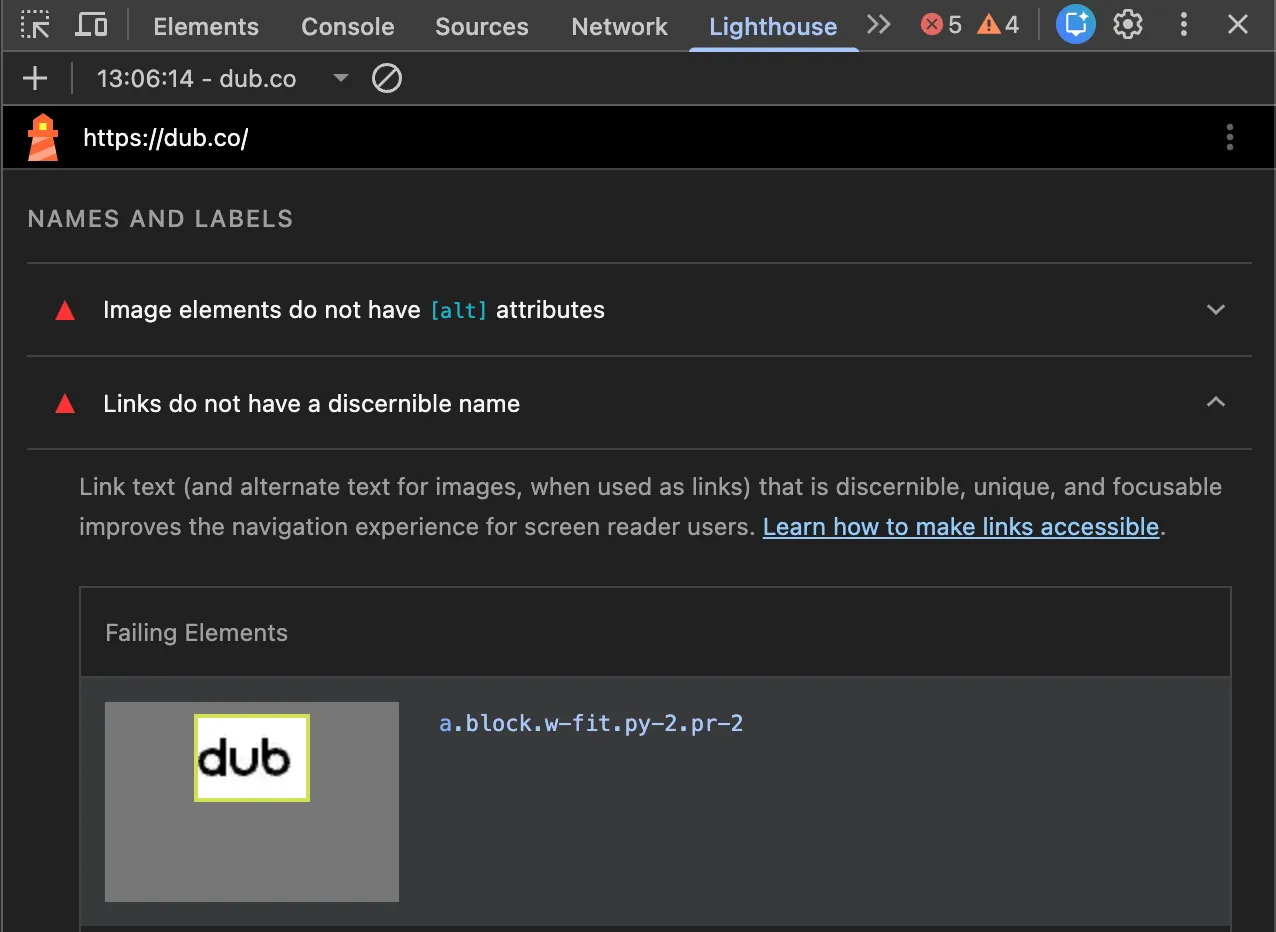
The results list all accessibility issues. Let’s pick one (as an example) Links do not have a discernible name and expand the section.
Finding a fix for an issue
The description says that link text needs to be discernible, unique and focusable which is not as descriptive. Press on the failing element in the report. This takes us to the Elements tab and focuses on the failing element.

After expanding it is apparent it only has an .svg image and no Link text. To figure out how to fix this I navigate to Learn how to make links accessible link in the Lighthouse page audit report.

In the How to Fix the Problem section one of the suggestions says -
Ensure that all link names are accessible. It may be possible that the inner link text is not visible to a screen reader, that there are duplicate link labels, or that the link is not focusable.
And further down there is an example of a link element with an aria-label property which provides a purpose to the link.
<h4>Neighborhood News</h4>
<p>
  Seminole tax hike: Seminole city managers are proposing a 75% increase in
  property taxes for the coming fiscal year.
  <a href="taxhike.html" aria-label="Read more about Seminole tax hike">
    [Read more...]
  </a>
</p>
<p>
  Baby Mayor: Seminole voters elect the city's youngest mayor ever by voting in
  3 year old Willy "Dusty" Williams in yesterday's mayoral election.
  <a
    href="babymayor.html"
    aria-label="Read more about Seminole's new baby mayor"
  >
    [Read more...]
  </a>
</p>
aria-label property can be used to fix the issue mentioned previously.
Finding the issue in source code
Go to the repository of dub.co which is located in github https://github.com/dubinc/dub.
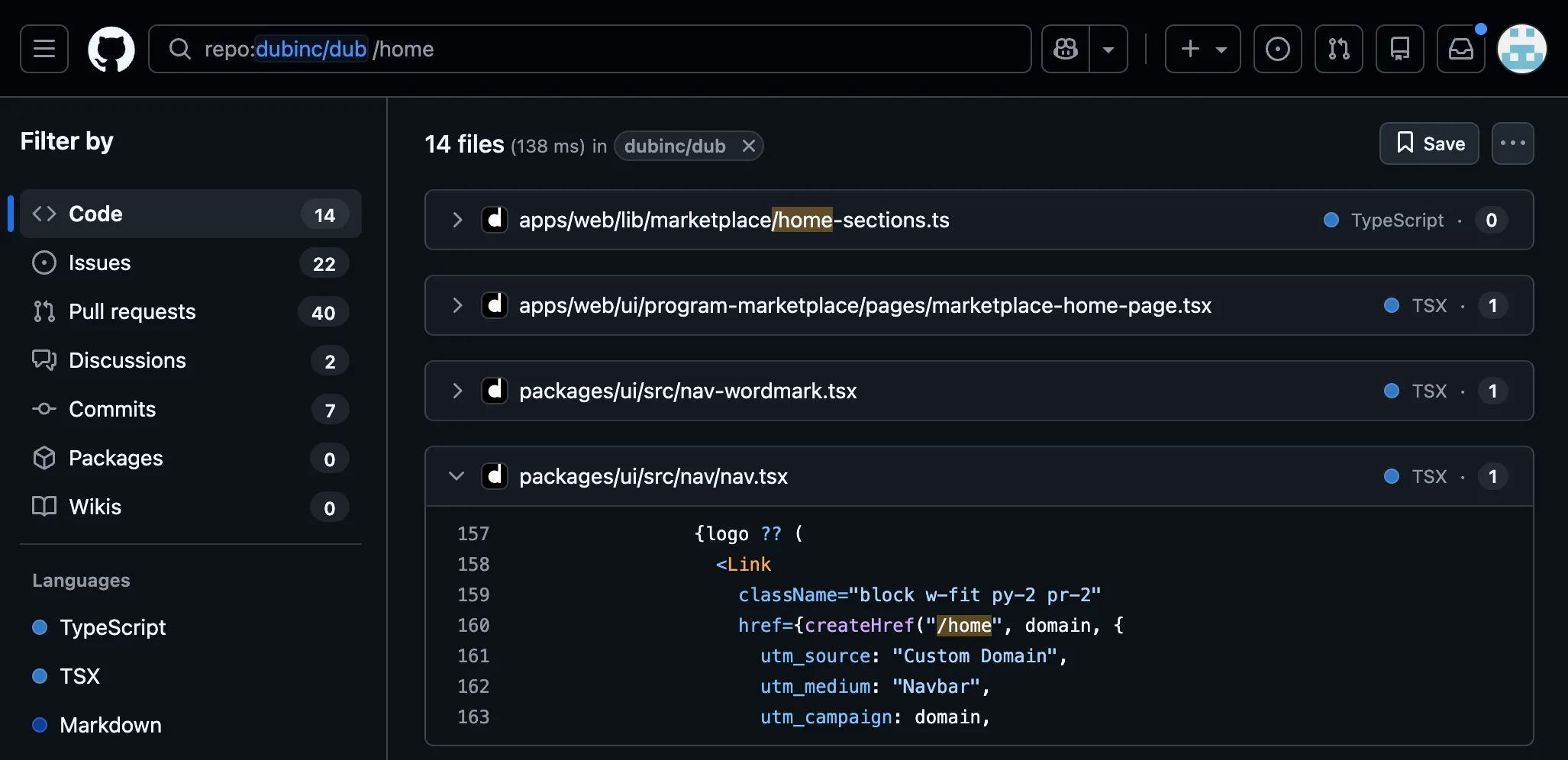
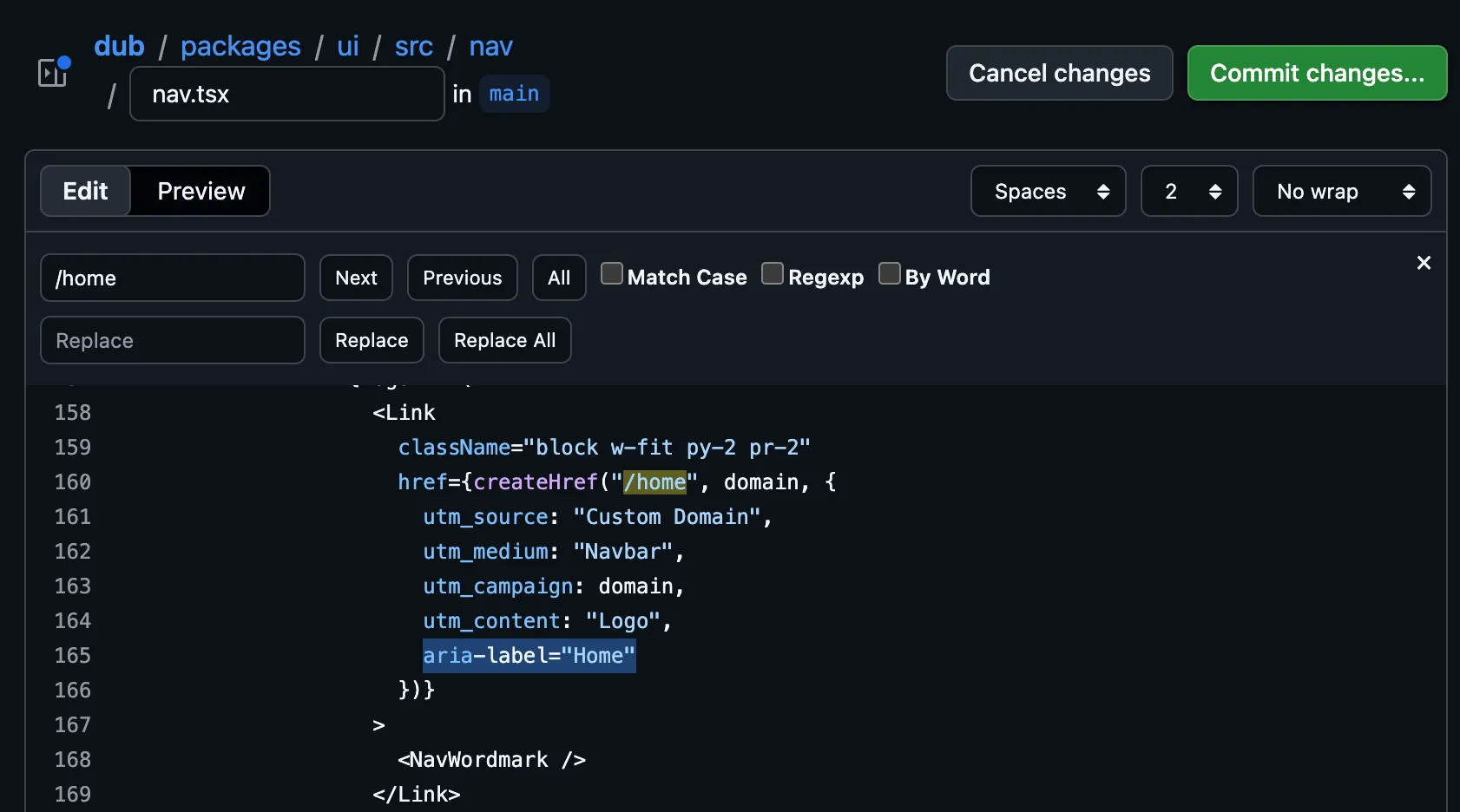
Since the codebase is unfamiliar, I will use the github search bar to search for the element without having to spend hours on understanding the codebase. I see that the element has a href=/home link which should be good enough to find the element in the codebase. In other cases I may search by the whole class e.g. block w-fit py-2 pr-2 which does the job most of the time.
<a class="block w-fit py-2 pr-2" href="/home">
  <div class="max-w-fit">
    <svg
      width="46"
      height="24"
      viewBox="0 0 46 24"
      fill="none"
      xmlns="http://www.w3.org/2000/svg"
      class="h-6 w-auto text-black dark:text-white"
    >
      ...
    </svg>
  </div>
</a>
In the results I see a Link Component that has the same classes and same link which means it’s highly likely to be the element.
Creating a fix for the issue
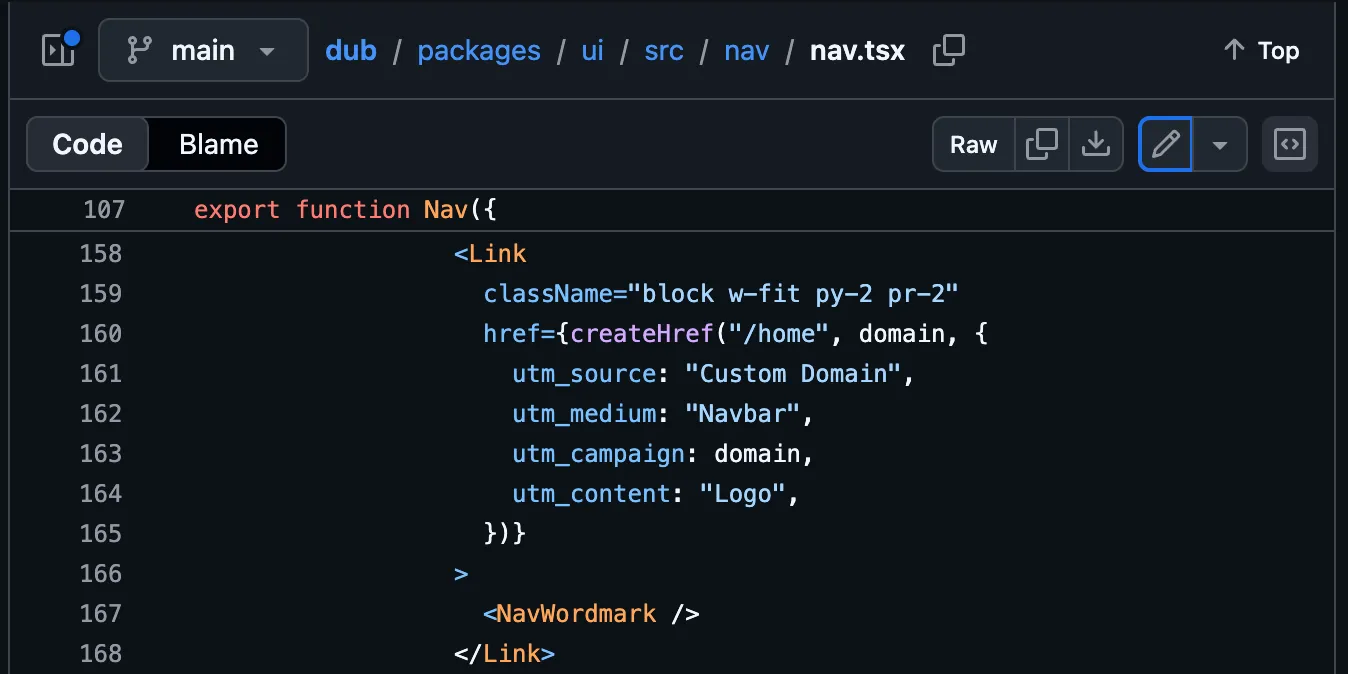
Go to the file by clicking on the packages/ui/src/nav/nav.tsx and in the file page click on the edit file button.
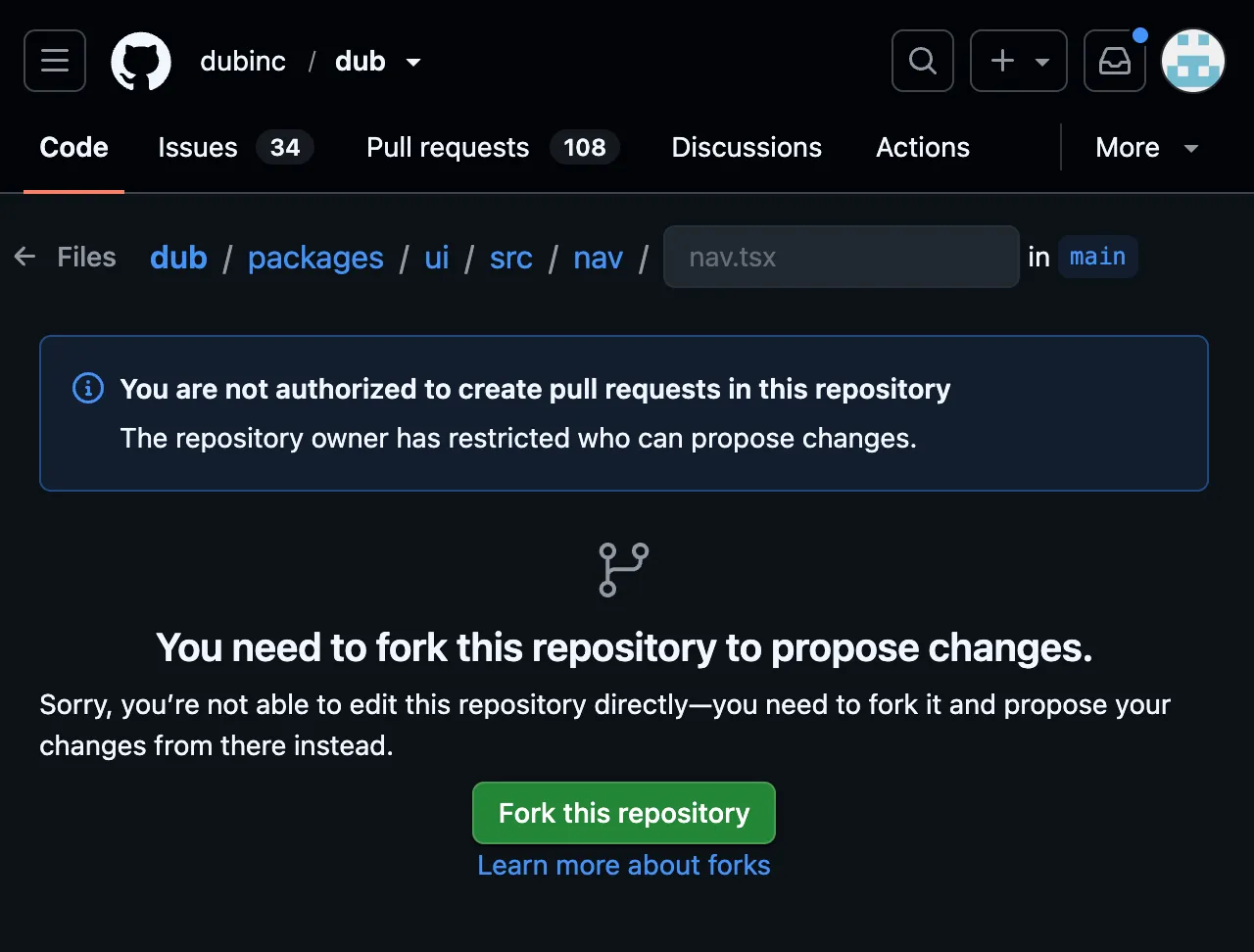
The dub repository setup requires a fork to make changes. Press Fork this repository.
In the edit page add aria-label="Home" as per lighthouse’s suggestion and press Commit changes.
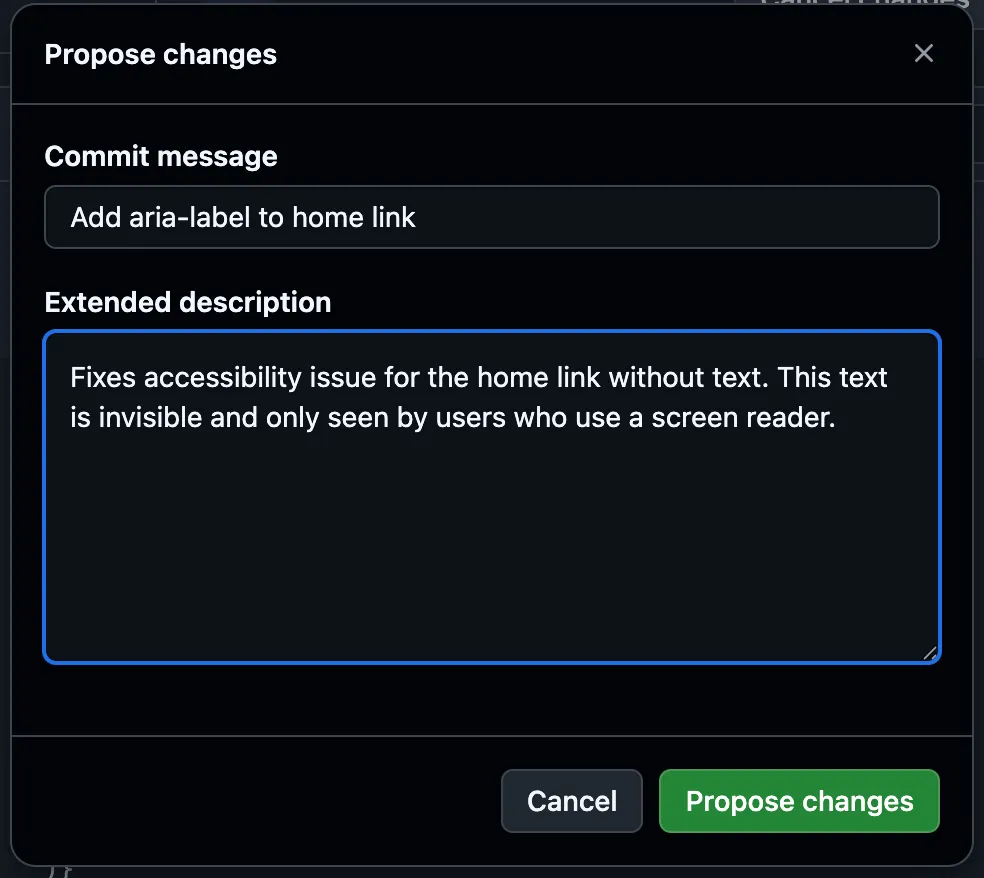
Add a descriptive commit message and description.
In the new page press Create pull request.
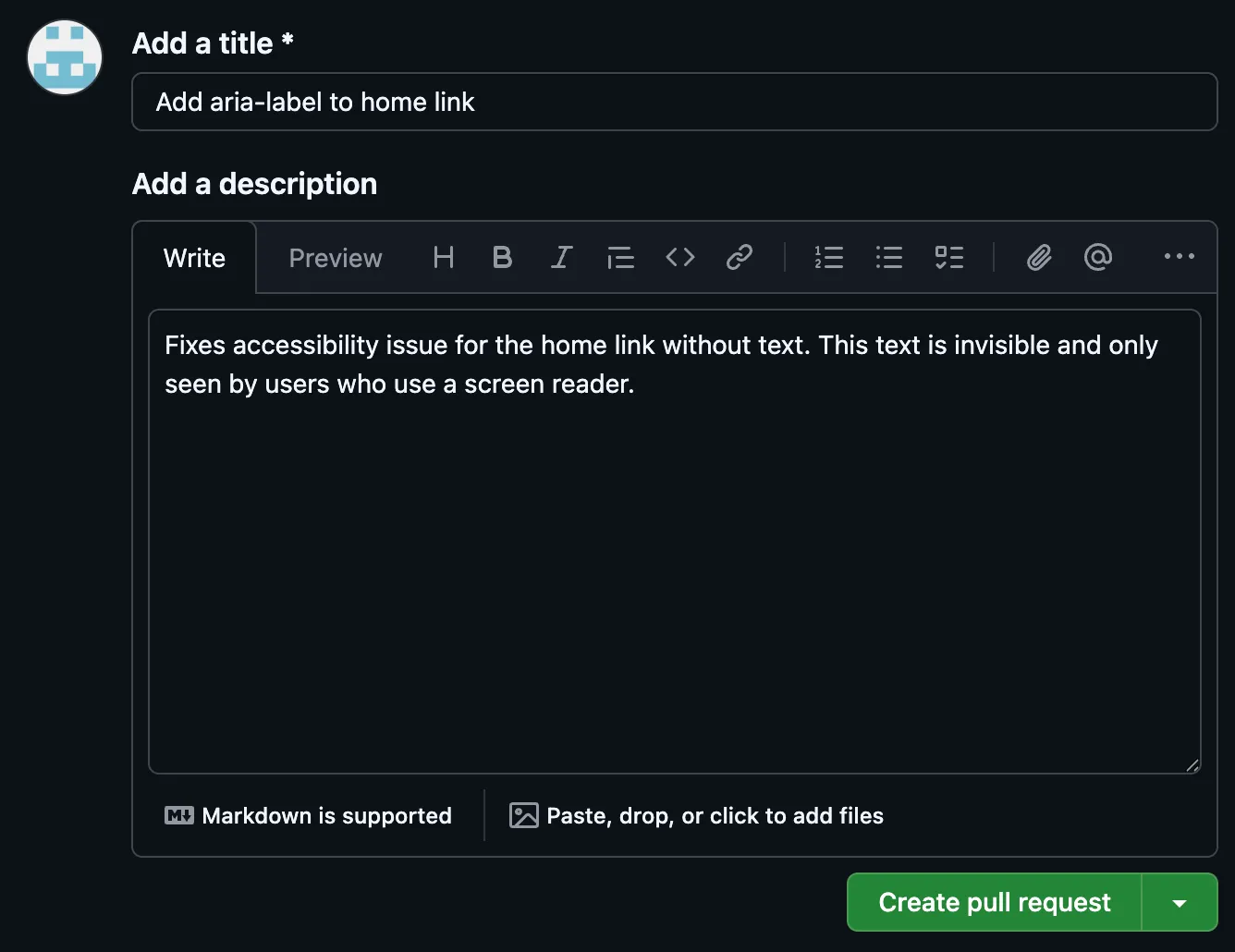
In the pull request page title and description is auto-filled with the same text as the commit. Press Create pull request.
For dub project it is set up so the maintainers need to approve and merge the changes. The fix is complete!